First use
Open the web interface
- Join the car's Wi-Fi hotspot from your phone, or reach the car over Tailscale.
- In the car, open GEM → mibpkg. It shows the address, for example
http://10.255.1.1. - Open that address in your phone's browser.
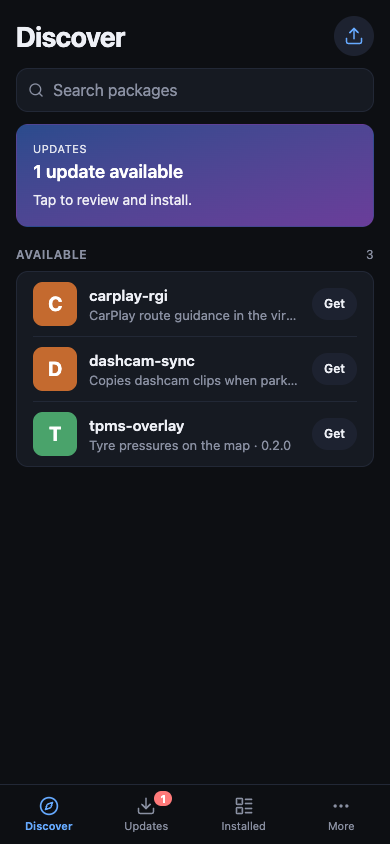
The interface has four tabs:
| Tab | What it does |
|---|---|
| Discover | Browse packages on the card and online collections |
| Updates | See available updates and update everything |
| Installed | Inspect, configure, restart, roll back or remove packages |
| More | Install from file, internet, logs, sources, web settings, health |
No SIM data?
The car's hotspot still works, so you can install packages from the card or a file. For online sources and updates, use More → Internet to enter your phone's hotspot name and password. The mibsdk package drives that uplink; with no SIM present it is on by default once a hotspot is saved. You can also set it in the car: Plugins → SDK → Internet.
Install a package
- Open Discover.
- Tap a package.
- Tap Install.
- Approve any permissions the package asks for.
A plugin package's permissions are shown in plain words. A package that adds a permission needs explicit approval.
Install a .mpk from your phone
- Open More → Install from file.
- Choose the
.mpkfile. - Review the package, its compatibility and any permissions.
- Install.
Uploads expire after 10 minutes if you do not install them.
Update everything
Open Updates → Update all. A plugin update that adds a permission is not approved for you; install that plugin individually with Install or Update so you can review the new permission.
Set a PIN
Open More → Web settings. A PIN is 4 to 12 digits. If you forget it, use GEM → mibpkg → Remove PIN. If the web settings lock you out, use GEM → mibpkg → Reset web settings.
Emergency stop
Create an empty file mibpkg/DISABLE on the SD card and reboot. No package services start while it is
present. Remove it and reboot to resume.